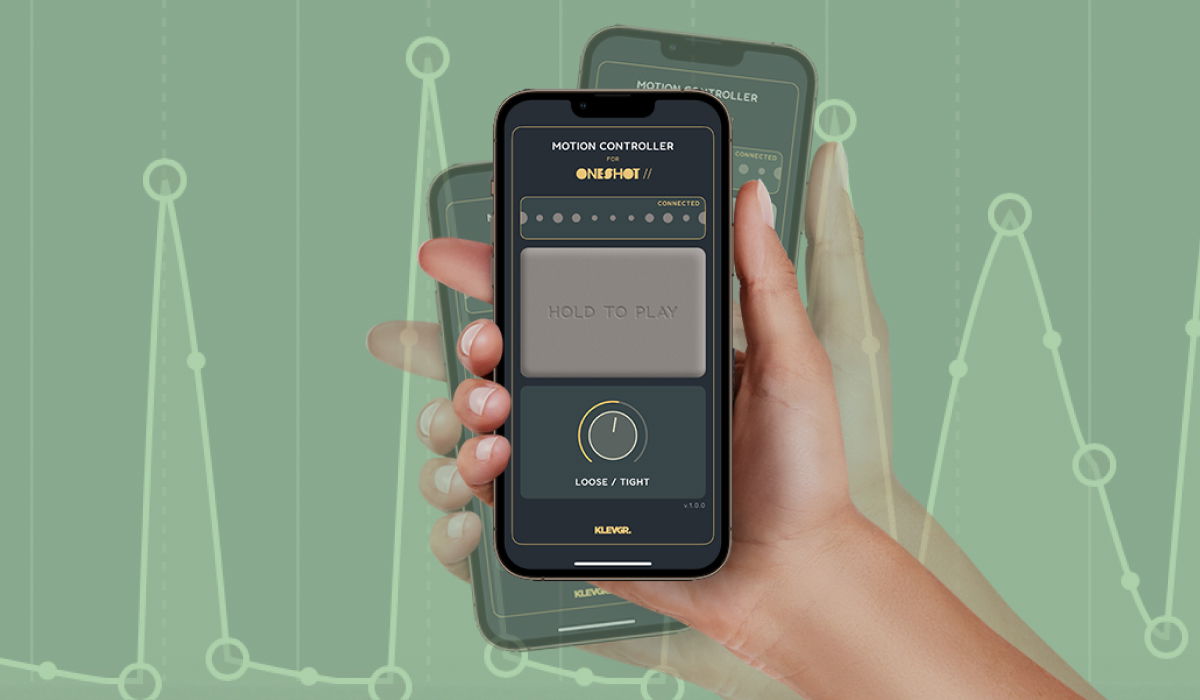
Motion Controller for OneShot2
Shake your iPhone, record MIDI
OneShot2 comes with a new optional Motion Controller app, that lets you play the Motion engine directly with your hand! Engage the External sync mode when playing a motion sound and you’re now dictating the sound directly with your iPhones accelerometer.
If you've tried our Rassel app you're in familiar territory. This time however, you will be able to play directly into OneShot2, recording the MIDI data. OneShot2 comes with many new sounds specifically for the new Motion engine and you can select the one you like before or after you've recorded your iPhone-shaking performance.

How to set up your iPhone for MIDI-connection to your Mac and DAW.
- Connect iPhone to a Mac computer via suitable cable.
- Open the “Audio MIDI Setup” application on your Mac and click “Enable” next to the iPhone icon. The center area text in the Motion Controller app should now change to “Hold to Play”.
- Load a preset containing motion slots in OneShot2 and you’re ready to start shaking! [Note: in some hosts you need to enable the new MIDI Device]
All OneShot2 motion presets and the Motion Controller app are set to note A1 by default. If you wish to play different trigger notes you can change note in Motion Controller and make sure the corresponding note in OneShot2 has a motion trigger set to External sync (Mod wheel).
To optimize MIDI recording, you might want to do some specific adjustments in your DAW, like disable “MIDI data reduction” (Logic Pro) or similar. This is different from host to host, but the majority operates on a fixed PPQ or temporal resolution for control change messages and cannot be adjusted. Check the manual of your preferred DAW for further details.
*The app has Bluetooth support but latency is not as good as with cable (and setup is more involved and less stable). Only recommended for die-hard Bluetooth enthusiasts).